Showing posts with label Just Dandy. Show all posts

Tuesday, April 30, 2013

Just Dandy Scrapbooking!

I totally adored the original Just Dandy collection, but this newly-released re-mix reminded me of how totally neutral it is! It has such yummy colors and textures.


Remember, when completing your pre-assembled pages, the 8x8 Grid Ruler comes in really handy.
1. Place the ruler over a photo matte and measure the size. (For example, 3-1/4x4-1/2".)
2. Subtract 1/4" from each measurement. (3x4-1/4")
3. Hover the ruler over the photo that you plan to use to ensure that the image will crop nicely down to the final size.
4. Trim the photo and adhere.

If you're still a little foggy on how this works, review this video:


Using this method resulted in a set of ten pages completed in less than two hours.

And Check out how the completed pages fell into place, accommodating subject material including a cruise, a marathon, outdoor family gatherings, and more. It scraps like a dream! I was also able to include miscellaneous alphabet stickers, thickers and embellishments from past kits in my stash! Use it . . . don't hoard it! :)


Grab your JD collection today for just $22.50 (member pricing).
Happy scrappin'!
Tricia

Friday, December 21, 2012

My Favorite Junior Kit Alpha Stickers

Sing it with me . . . "On The Nineth Day Of Giveaways Club Scrap Gave To Me . . . a Just Dandy JR Kit (so be sure to comment on this blog post to have a chance on winning)!

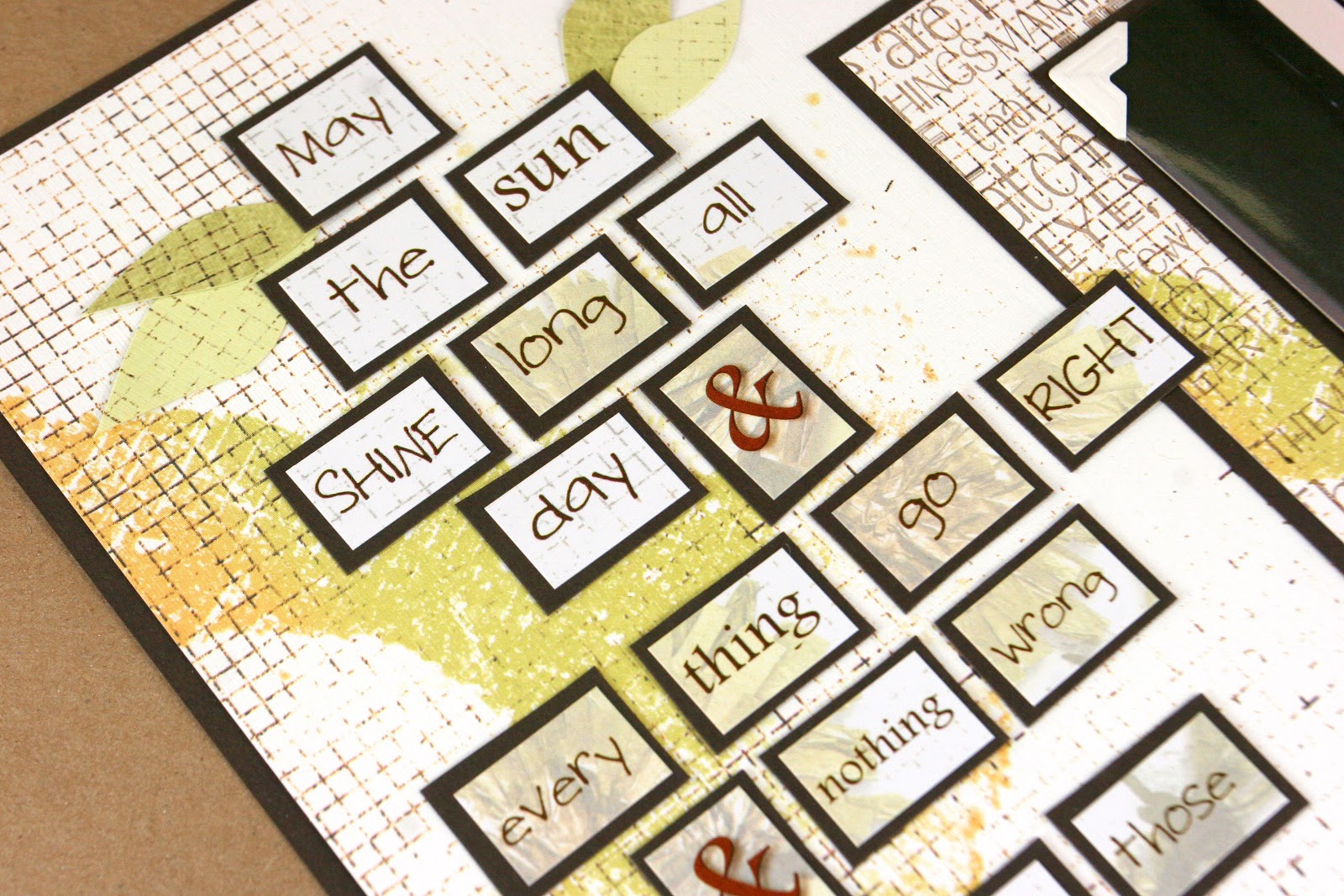
Since the JR Just Dandy Kit contains my favorite Alpha Sticker sheet, I just had to whip up this easy layout featuring those little gems.


The word stickers on this sheet have such sweet sayings that can be used all together like I did here, or separately would be nice. too. I mounted mine on brown card stock to give 'em a little extra definition.


Oops . . .  I just read my layout a little more carefully and see I still have some word rearranging to do in the last phrase heheee, but totally love these stickers.

Okay, it's time for another "12 Days of Giveaways!" We'll give away a Jr Just Dandy Kit to one lucky winner, chosen at random, from those who write comments on today's post, through midnight tonight(CS/Central time).


As always, thanks for looking and enjoy the giveaways!
Kay

Friday, September 21, 2012

Digital Card Trick

Happy Friday, everyone! Ron from Club Scrap here today to perform some slight of digital hand with a card trick!

Last week I showed you how you can make your Facebook and email birthday wishes really stand out by using a digital card. Today, I'll show you how that digital card can serve double-duty by becoming a hybrid card! And using your digital kit goodies to created a printed card helps you get more mileage out of your paper kits, too - we don't wanna be running out of CS paper now, do we?

Here's the digital card that I've chosen to work with:

I made it using Just Dandy - one of my favorite Club Scrap® kits (I know I say that a lot, but that's only 'cuz so many of them ARE my favorites!).

(I'll be using Photoshop 5.5 to create my hybrid card, but any program that supports layers should work just fine.)

1. Create a document that measures 8.5 x 11 with a white background, 300 ppi.

2. Drag all the layers from your card PSD file onto the new 8.5 x 11 document.

3. Determine if there are some 'complex' shapes that you won't want to 'fussy' cut - you'll need to leave those shapes on a piece that will be easier to cut out (or you may opt to just leave that item off your final design completely).

4. Remove all layer styles and delete any custom drop shadow layers that you created when the original card was designed - note: if you're leaving any complex shapes layered on top of other shapes, it's a good idea to leave the complex shape drop shadows in place.

5. Move the individual layers around on your 8.5 x 11 document so that there's no overlapping - you'll be printing and cutting these pieces out, so leave a bit of space between each item, and leave enough space in the margins so that things don't get cut off by your printer. I opted to cut out the dandelion, but printed an extra copy just in case I needed it!

Note: I normally elect to not include the base 'paper' from my digital card. instead, I'll use a coordinating sheet of CS paper cut to size as the card base and just use the rest of the pieces from the card.

6. Save your file (this way you can print out more copies later and make more cards!).

7. Print out the file on CS® Basics White card stock.

8. Cut out the individual pieces.

9. Ink the edges - it adds some extra interest and hides the white edge of the paper.

10. Assemble your card, using your original digital card as a reference for where things go. Use pop dots to add dimension. You can also opt to use real ribbon rather than the paper ribbon and you can add other embellies from your stash if you'd like.


Here's the finished hybrid card:

Now, wasn't that easy? I hope you found this helpful for yet another way to use those wonderful digital cards!

Thursday, July 12, 2012

3-Step Digital Layout

As many of you know, Club Scrap® Summer Camp started this week (and if you don't know about Summer Camp, click here to learn about it!). Karen Wyngaard and I are the Counselors for this year's digital cabins. So I thought this might be a nice time to show everyone a quick 3-step digital layout. It's an easy way to make a layout, even if you're new to digital scrapping. And If you want to add some journalling, I've got an optional 4th step for ya, too! Even with 4 steps, we're still talkin' easy-peasy!

One of the great things about the monthly Club Scrap Digital™ kits are the clusters - these are ready-made embellishments that include custom shadows to make your digital layouts really shine! And sometimes, 1 or 2 of those clusters include frames - it's those frame clusters that allow us to make a really cool layout in 3 (or 4) steps! So let's get started…

(My layout was made using Adobe Photoshop 5; if you're using a different program, adjust your steps accordingly - but this is a very basic layout which doesn't use a lot of fancy steps!)

To get started, open a new document - 12" x 12", 300 ppi, transparent background. Make sure you've selected the Pointer tool from the Tool palette.

1. Pick a background for your layout and drag it onto your new document. (In Photoshop, if you hold down the Shift key while you drag, the background will automatically center itself in your new document.) I'm using a background from July's Sorrento Kit.

First, place your background.

2. Open your desired photo and drag it onto the background (don't worry about where to position the photo yet).
Next, add a photo.

3. Open your frame cluster and drag it onto the background. I picked a frame cluster from Just Dandy. (Yeah, that's right - I'm mixing kits, but don't they look great together?!)

Then, add a Frame Cluster.

Now you can resize your photo so that it fits the frame - click and hold one of the corners and drag to make your photo larger or smaller, as needed. Hold the Shift key to retain the photo's proportions while you resize. Press 'Enter' to accept your changes. Depending on the frame cluster that you chose, you may need to rotate your photo - hover your cursor near one of the corners of the photo until you see the curved arrows - then click and drag to rotate the photo as needed. Press 'Enter' to accept your changes. If you want to move your photo & cluster on the page, just be sure to select both layers in the layers palette and reposition as desired.

Finished Basic 3-Step Layout
You're done! Now wasn't that easy?

Okay, if you want to add some journalling, here's a quick way to do that:

4. Select the Text tool (it's a capital 'T') in the Tool palette, click anywhere on your layout and type your title or journalling (photoshop will automatically create a new layer for your text). Change the font, size, and color as desired. Repeat if you want to add more text to your layout.

Done! Here's my finished layout:

Finished Layout with optional Text

Now it's your turn - make a layout (for PSL or just for yourself).

And here's a surprise - Tricia's on vacation this week, so we're havin' a bit of extra fun while she's gone - post a comment (by Friday, July 13th 12 Noon CS time) and tell me what you love about Club Scrap Digital™ and 1 lucky winner (chosen at random) will get a special digi prize!